Delivering print-ready files without accidents: a checklist and a method
Published
The worst outcome in print work is noticing the mistake after the job comes off the press. A reprint costs money and days, and both usually come out of your side.
Alongside faults in the artwork itself, a surprising share of accidents come from the handover — nobody can tell which version is final. The first kind you catch with checks before export. The second you only fix by changing how you send.
Print files also travel in two directions, and each asks for something different: from the designer to the printer (submission), and from the designer to the client (proofs and final files). This guide takes the checks first, then the two directions separately.
1. The pre-submission checklist
Run this list before anything goes to the printer. A fault found here costs incomparably less than the same fault found on press.
- Is the colour mode CMYK?
- Submit in RGB and it will not print the colour you designed. Vivid blues and greens in particular go flat. Export settings may convert for you, but leaving it to the export means you never see the result.
- Is the bleed set?
- You need 3mm of bleed outside the trim line, so a slight shift when cutting does not expose white paper. Build a background or photo exactly to the trim line and there is nothing to trim into.
- Is the image resolution enough?
- 350dpi at final size is the benchmark. Reuse a 72dpi image exported for the web and it will visibly break up. Large-format work meant to be viewed from a distance can go lower — ask the printer.
- Have you outlined the fonts?
- Skip it and the printer’s system substitutes another font. But text can no longer be edited once outlined, so always keep a separate working original.
- Are all linked images present?
- Submitting with broken links is a frequent accident. Use the package function so linked images and font information are collected together.
- Any leftover layers or stray objects?
- Working elements parked outside the artboard can still output. Hidden layers behave differently depending on export settings, so deleting them is the safe move.
- Are the crop marks right?
- Check at the same time that the document size and the finished size actually agree.
2. Choosing a file format
The choice follows from how much the printer is expected to touch the file.
| Format | Suited to | Watch out for |
|---|---|---|
| PDF/X-1a | General print work. The safest choice | Transparency is flattened |
| PDF/X-4 | When transparency must be preserved | Check the printer supports it |
| ai / indd (packaged) | When the printer will edit the file | Linked images and fonts must be included |
When in doubt, the printer’s own specification is the only right answer. Absent one, PDF/X-1a is the safe default.
3. The data is bigger than you think
Work out the size before you choose how to send it. It varies enormously by job.
| Job | Approximate size |
|---|---|
| A4 flyer, single side | 10–50MB |
| A4 brochure, 16 pages | 100–300MB |
| B0 large-format poster | 500MB–2GB |
| Catalogue, 100+ pages (packaged) | 1–5GB |
| Photo book or portfolio (full submission) | 5–20GB |
Actual sizes vary with resolution, the number of images, and compression settings.
For multi-page or photography-led jobs, email attachments are out of the question and you can approach the ceiling of an ordinary file transfer service. A package export bundles every linked image, so it runs larger than you expect.
Estimate the size first, then pick a method that can carry it. Do it the other way round and you are shopping for a method with the export already sitting on your disk. Sizes for video work are covered separately in how to deliver video files to a client.
4. Submitting to the printer
Stop the wrong version being printed
The most common accident in print is that an older version goes on press. You send a replacement with every revision, and at some point the printer can no longer tell which is current. The artwork is right and the printed piece is wrong — the most dispiriting way to lose a job.
The handover is where you prevent it.
- Put the date and version in the filename (job_A4-front_20260920_v3.pdf)
- When you send a replacement, disable the old link
- Say in the email, in words, that this is the current version
With a service that lets you stop an old share link on the spot, the printer is never holding several live versions at once. In FILE SHIPPER that applies to every plan, the free one included.
Mind the retention period
A print job can run for weeks between submission and sign-off. Use a service that keeps files briefly and the link can be dead by the time the printer starts work.
Solving that with a longer retention period is the wrong instinct, though. Even generous retention on a transfer service rarely covers the length of a print job — FILE SHIPPER’s Business plan caps at seven days. Keep the original on hand regardless of retention, so you can re-send the moment you are asked.
A submission email template
Spelling out the specification in the email itself cuts down the back-and-forth from the printer.
Dear [name],

Please find below the files for the job detailed here.

- Job: [job name]
- Finished size: A4 (210×297mm)
- Pages: 2 (front and back)
- Stock and finishing: 90kg coated, matt lamination
- Quantity: 3,000

Files:
[link]
Format: PDF/X-1a
Link expires: [date]

Notes:
Fonts are outlined. Exported with 3mm bleed and crop marks.

Please let me know if anything is missing or needs changing.

Kind regards,
[your name]
5. Proofs and final files for the client
This direction is a different situation. The person receiving is not a print professional, and the way they receive the work becomes part of their impression of it.
Do not make them do anything
Ask a client to create an account or install an app and the review stops there. Plenty of companies do not let staff install software on their own judgement. Opening the file with nothing more than an email address is the minimum bar.
What the screen looks like
Picture sending a proof PDF. The client opens the link and looks at the download page. And that page gets shared internally — from your contact to their manager, or on to their own client.
If unrelated ads are sitting on that page, a studio that sells design has undercut its own case. The receiving screen is part of how your work looks.
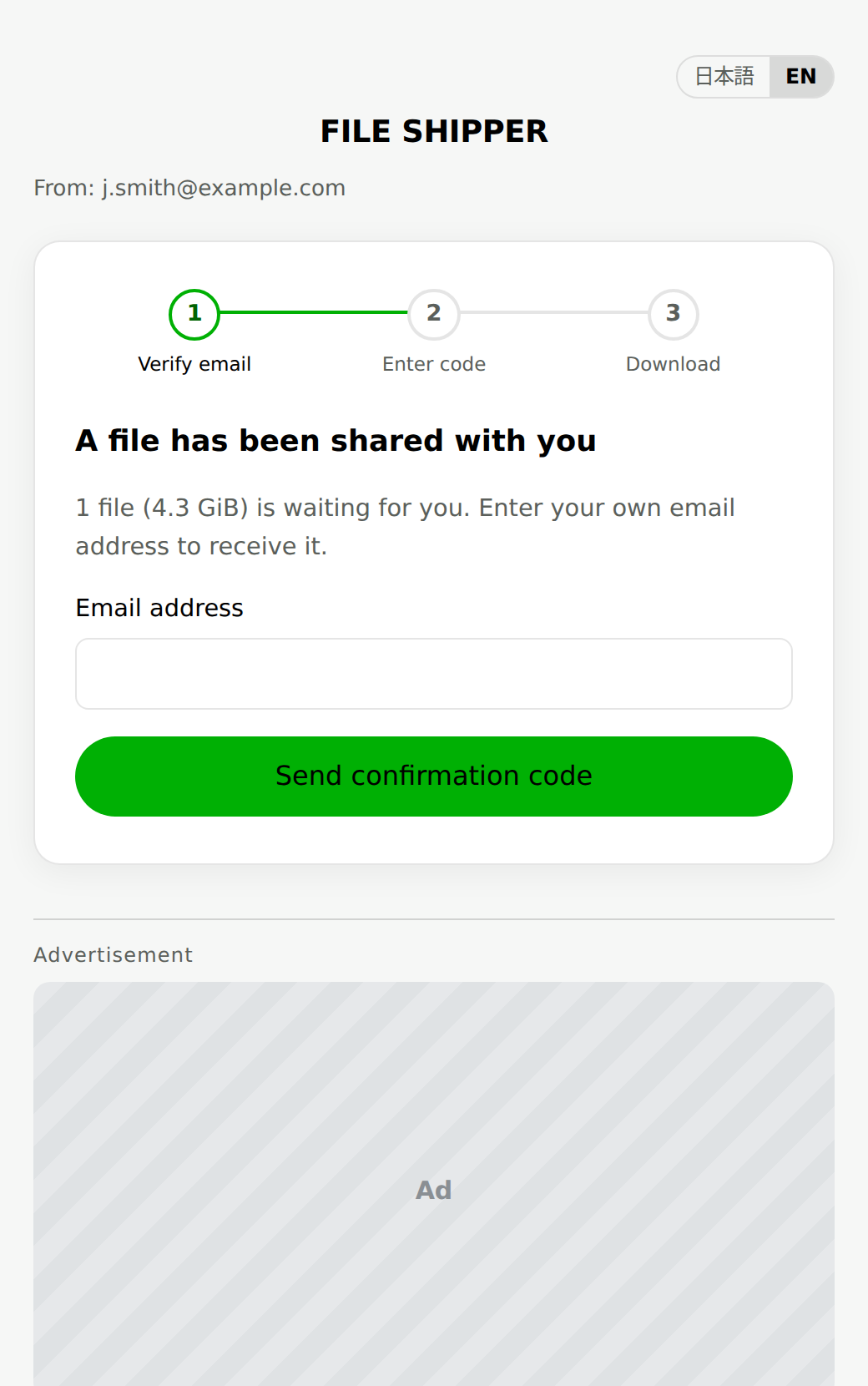
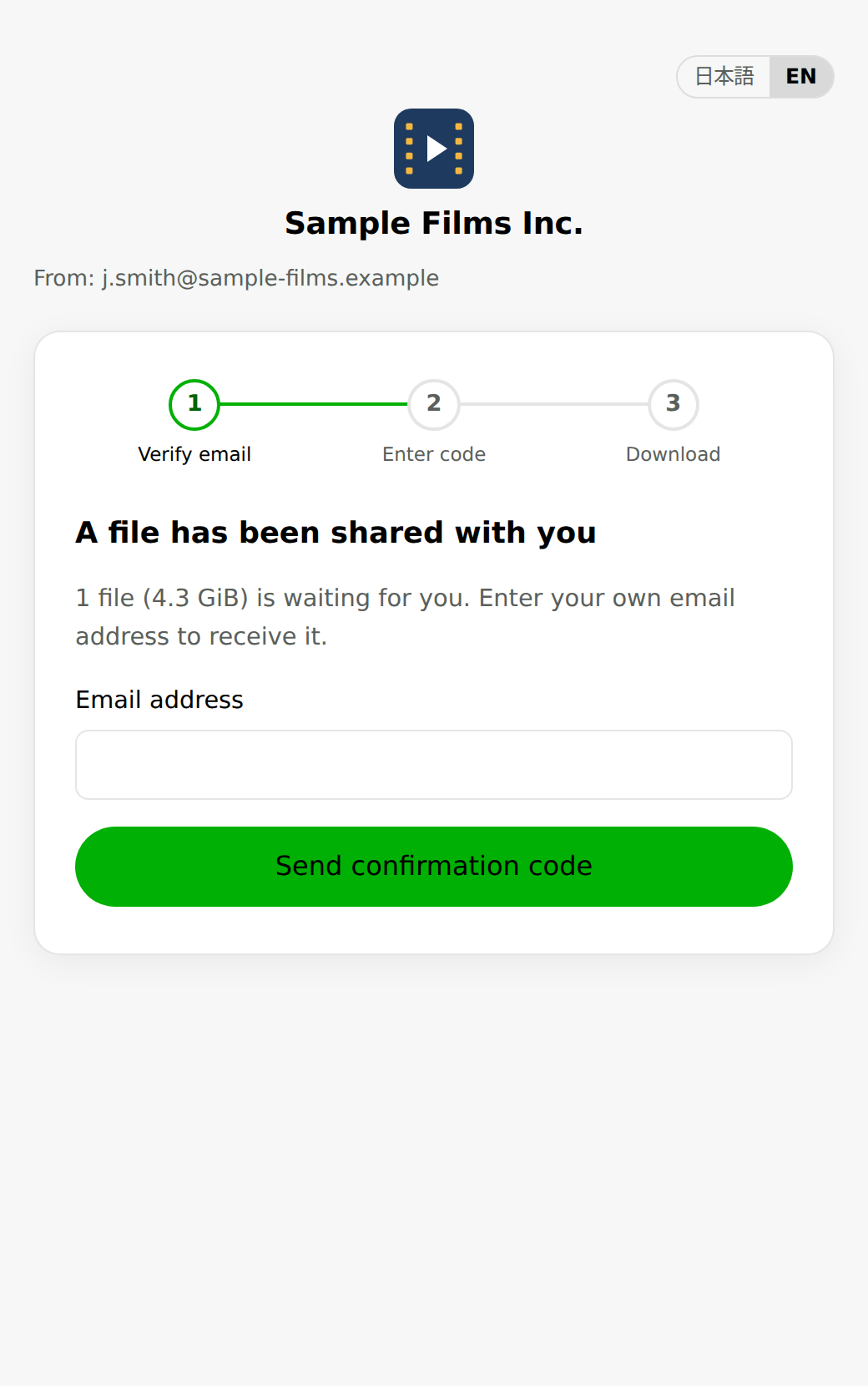
Illustrative screenshots. The page carrying ads is FILE SHIPPER’s own free-plan recipient page, with a placeholder in the ad slot rather than a real advertisement. The branded page is the Business plan, and the company name, logo and address in it are fictional.
On FILE SHIPPER’s Business plan the download page carries your own subdomain, company name and logo, and no ads. You can also show portfolio documents or a studio introduction alongside the files, so every proof you send is a point of contact for the next job.
It takes up to 100GB per file and 500GB a month, which covers handing over a full package. Recipients verify with a one-time code sent to their own email address, so a forwarded link still cannot be downloaded by anyone else.
6. Accidents that actually happen
- Submitting before outlining the fonts
- After exporting, open the PDF on another device — a phone or tablet will do — and check the type renders correctly. On the machine you designed on the fonts are installed, so you cannot see the problem.
- Spot colours mixed in with CMYK
- An unintended spot plate left in the file adds a plate, and can push the cost up sharply. Open the swatches panel in Illustrator and check nothing unused is still there.
- Meaning to send the revision, sending the old link
- Issue a new link for each replacement and stop the previous one. Manage it by filename alone and you will pick the wrong one at the moment of sending.
- It would not open on their side
- Files in the gigabytes are sometimes blocked by the recipient’s own corporate network settings. On a first job, send a small test file first and confirm it arrives.
Frequently asked questions
- Can I send submission data as an email attachment?
- For something like a single A4 flyer — a few MB — it is sometimes possible, but most printers set a limit on what their mail can receive. As a rule, a file transfer service is the norm.
- If the printer gives no format specification, what should I submit?
- PDF/X-1a is the safest and the least likely to cause trouble. If you want to keep transparency live, confirm with the printer in advance that they support PDF/X-4.
- When I send a revised version, what should happen to the old data?
- Stop the old share link so that only the current version can be downloaded. That is what reliably prevents a mix-up at the printer.
- Can I use a password-protected zip to send proofs to a client?
- A growing number of companies now block password-protected zips outright on security grounds. We recommend switching to a safer method that verifies each recipient instead.
What to do when you are told password-protected zips cannot be accepted
The receiving screen is design too.
Send proofs and final files on a download page carrying your studio’s logo and name. Up to 100GB per file.